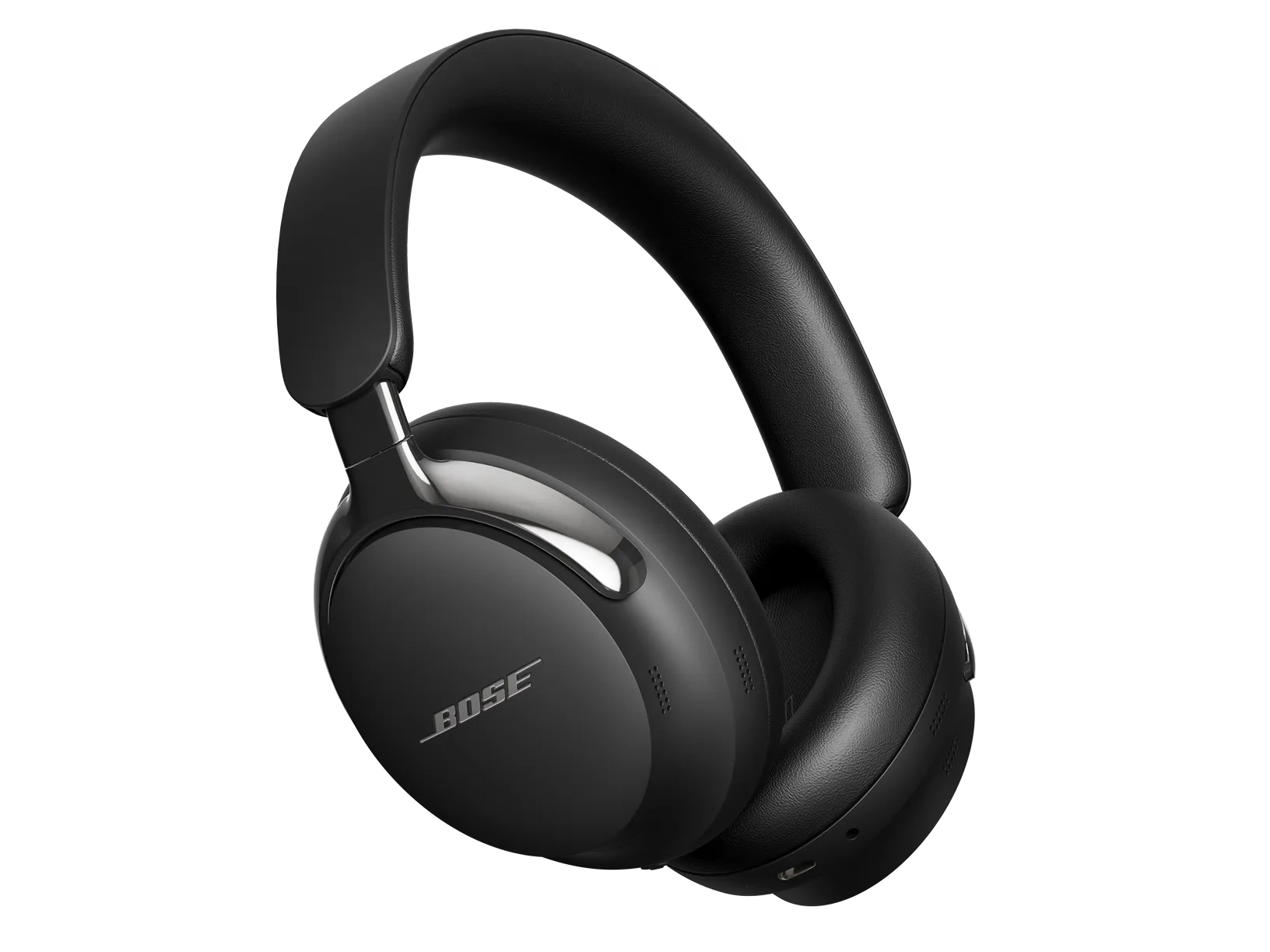
音が出ません | Bose QuietComfort Ultra Headphones (2nd Gen)
bose-quietcomfort-ultra-headphones-(2nd-gen)
Bose QuietComfort Ultra Headphones (2nd Gen)販売元 2025

音が出ません | Bose QuietComfort Ultra Headphones (2nd Gen)

USBオーディオを使用している場合は、次の操作を試してください。

You can be connected to Bluetooth and and USB audio at the same time. 

Pressing the Power/BT button and the headphones will announce which audio source is currently active. Press again to switch to the other connection. (You may need to pause any currently playing media to hear the voice prompt). You will hear two chimes as it connects to the other source. 

Ensure your firmware is up to date

Though at launch only USB playback  was possible, support for 2-way USB audio (microphone + playback) was added in a recent update. See Updating Your Headphones for guidance on how to check and update your headphones.

Try connecting to a direct USB port instead of a hub

If you experience no audio when using a USB hub, try connecting the headphones directly to a USB port on your computer or laptop.

Try a different USB port

If you are already using a direct connection, try another USB port on your device.

Reseat the USB Cable

In some cases, the computer may not properly recognize a connected USB device. Disconnect the USB cable from both the headphones and the computer, then reconnect.

Try a different USB Cable

USB cables can become damaged over time.  Try a different cable. You can purchase a replacement here.

Check the Audio settings of the VOIP(Voice over IP) program you are using. 

In your VOIP program (Teams/Discord/Zoom etc.) ensure mic and audio routing is setup correctly to use the headset and not another audio device.

+Advanced USB Audio Troubleshooting+

Reinstall the audio device driver

  1. In Windows, go to Device Manager 
  2. Select the headset (likely under Audio inputs and outputs) 
  3. Right-click, then select Properties 
  4. Select the Driver tab
  5. Uninstall Device
  6. Reboot your computercement

Disable USB Power saving (Advanced)

  1. Press Windows key + X and select Device Manager
  2. Scroll down and expand Universal Serial Bus controllers.
  3. Right-click on each USB Root Hub  or Generic USB Hub and select Properties.
  4. Navigate to the Power Management tab.
  5. Check if the box for Allow the computer to turn off this device to save power is ticked.
  6. If the box is ticked, power saving is enabled for that USB port. If unticked, it is disabled.
  7. Repeat the process for all USB hubs listed under Universal Serial Bus controllers.

付属のオーディオケーブルでデバイスを接続してみてください。

注意:オーディオケーブルがヘッドホンに接続されている場合:
  • Bluetooth®機能は無効になります。
  • ヘッドホンはパッシブではないため、AUXケーブルで使用するには電源を入れている必要があります。
  • バッテリーが切れている場合でも、USB充電ケーブルとAUXケーブルを同時に使用できます。
  1. オーディオケーブルの小さい方の端を左のイヤーカップ底部のジャックに接続してください。
  2. ケーブルのもう一方の端を1/8インチ" (3.5 mm)ヘッドホンジャックに差し込みます。

接続されているデバイスを再起動してください。

電子機器はコンピュータの再起動のように、時折RESETが必要になることがあります。機器の電源を一度オフにしてから、再度オンにして試してみてください。

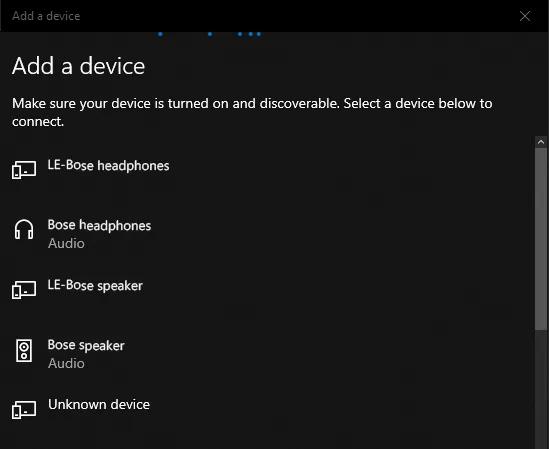
Windowsにデバイスを追加する際は、ヘッドセットまたはスピーカーのアイコンからBluetooth®デバイスに必ず接続してください。

Windowsでは、Bluetoothデバイス一覧にお使いの製品が2つ表示されます。1つはデバイスアイコンが付いており、 LE という表記が製品名の前にあります。もう1つはヘッドホンまたはスピーカーのアイコンが付いています。ヘッドホンまたはスピーカーのアイコンが付いている方を選択してください。 LE の一覧は選択しないでください。

ヒント:すでにデバイスアイコンの方でペアリングしている場合は、再度製品を接続し、ヘッドホンまたはスピーカーのアイコン付きの一覧を選んでください。詳細は、 Bluetooth®デバイスの接続についてをご覧ください。

Windows 10 Add a device screen

ヘッドホンを再起動してください。

このリセットでは、製品の設定は消去されません。
  1. ヘッドホンにUSB充電ケーブルやオーディオケーブルが接続されている場合は、外してください。
  2. USB充電ケーブルと充電器をコンセントに接続してください。また、USBケーブルは電源が入ったパソコンのUSBポートに接続してもかまいません。
    注意:ヘッドホンはまだUSBケーブルに接続しないでください。
  3. ヘッドホンの 電源/Bluetoothボタンを押し続けます。
  4. 押したままの状態で、USBケーブルを左イヤーカップに接続してください。ヘッドホンの電源ランプがすばやく2回点滅します。
  5. 接続したら、2秒間待ってから 電源/Bluetooth ボタンを離してください。
    ヒント:これでもヘッドホンが反応しない場合は、もう一度リセットしてください。

別のアプリを試してみてください。

特定のアプリだけで問題が起きる場合、その原因はアプリ本体か、アプリの設定にある可能性があります。

別のBluetooth®デバイスでも問題が発生するか確認してください。

現在製品にペアリングされているソースデバイスが問題の原因となっている可能性があります。別のBluetoothソースデバイスとペアリングして、問題がそのデバイスに限定されるか確認してください。

製品に記憶されている以前にペアリングしたBluetooth®デバイスの情報をクリアしてから、再接続してください。

お使いの製品は最後に接続した複数のデバイスを記憶しているため、素早く再接続できます。デバイスのメモリに問題がある場合はメモリをクリアし、再度接続してください。詳しくは、 ペアリング済みBluetooth®デバイスの製品メモリをクリアする方法 と Bluetooth®デバイスの接続方法をご確認ください。

お使いの製品をBluetooth®デバイスの記憶から削除し、もう一度お試しください。

Bluetoothデバイスの設定画面で、以前接続した製品の一覧を確認してください。そこから該当の製品を削除し、再度デバイスとペアリングし直してください。詳細情報は、 Bluetooth®デバイスの接続をご覧ください。

接続されている場合は、アダプターや延長ケーブルを使用せずに直接接続してください。

製品が延長ケーブルやアダプターを使ってデバイスに接続されている場合は、問題の原因を特定するために、それらを一旦取り外してください。

有線接続で使用する場合は、ヘッドホンの電源がオンになっていることを必ずご確認ください。

このヘッドホンはボーズ独自のアクティブEQ機能を搭載しており、CustomTuneテクノロジーによりパーソナライズさ��たリスニング体験と相まって、驚くほどリアルで臨場感あふれるサウンドを提供します。

この機能を利用するには、有線接続時でもヘッドホンの電源をオンにしている必要があります。

ヘッドホンケーブルの状態を確認してください。

プラグやケーブルのいずれかが損傷している場合は、ヘッドホンケーブルを交換し��ください。

これは役に立ちましたか?

YES
NO
修理または交換を開始する