これは役に立ちましたか?
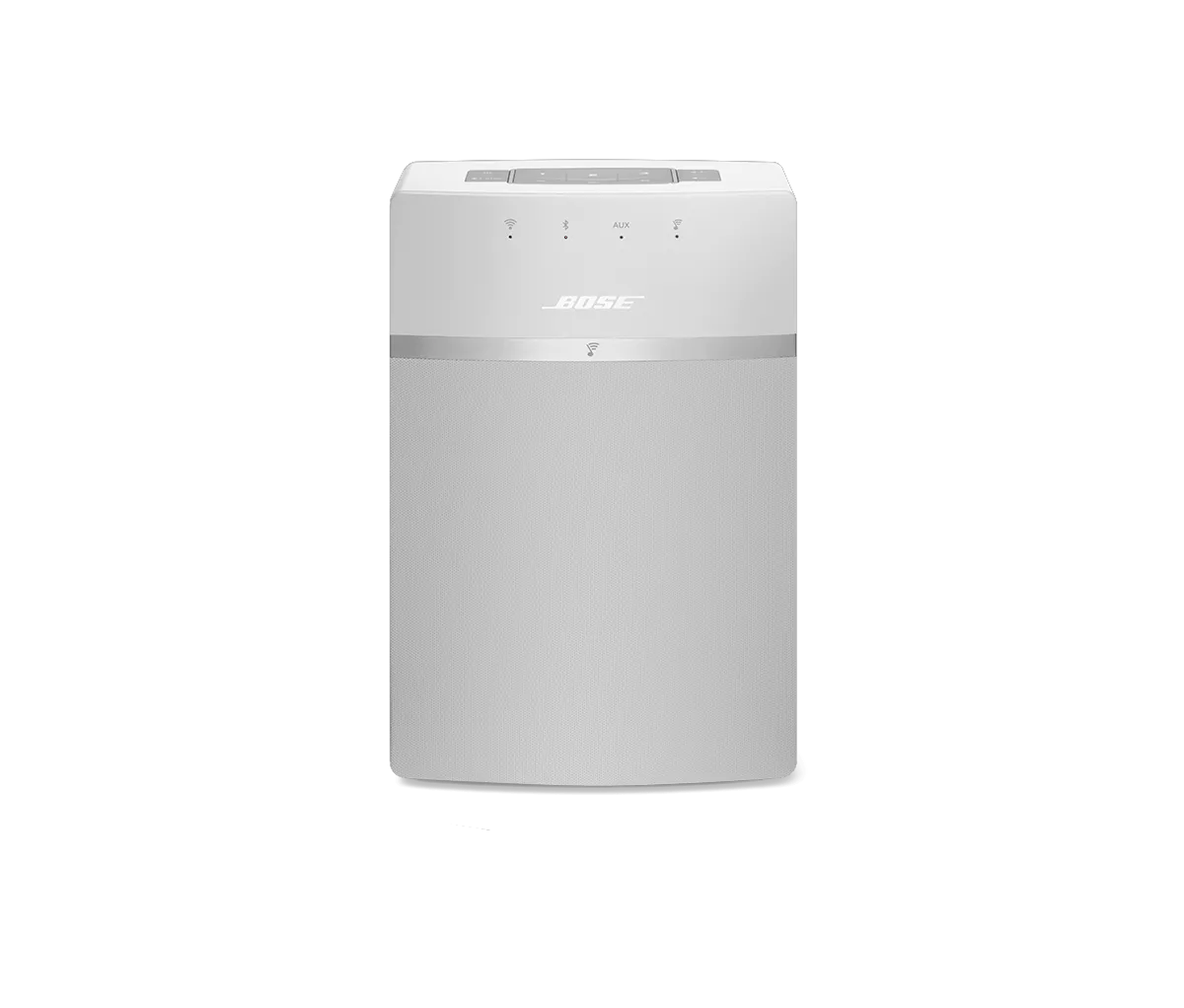
製品のソフトウェアまたはファームウェアを更新する | SoundTouch® 10 wireless speaker
以下のアップデート方法からお選びください。
アップデートを確認する
To check for and install an available update for SoundTouch 10 speaker:
- Power on the speaker.
- On the top of the speaker, simultaneously press and hold the 4 and Volume - buttons for about 5 seconds until all the lights on the front of the speaker blink.
- Wait while the update completes:
- While downloading the update, the Wi-Fi light slowly blinks
- While installing the update, the Wi-Fi light glows for a few seconds, then blinks twice and repeats
- When the update is complete, the system might reboot, then the Wi-Fi light will glow solid
SoundTouchアプリで更新する
SoundTouchアプリからSoundTouchシステムを更新するには:
システムの画像にあるアップデートアイコンを探してください
。システムにアップデートが必要である旨のメッセージが表示される場合もあります。
- SoundTouchアプリで、メニューアイコン ☰ (画面左上)を選択します。
- 設定 > スピーカーの設定を選択します。
- ソフトウェアの更新 または すべてを更新 を選択します。複数のシステムがアップデート対象の場合はすべてを更新を選択してください。
アップデートが利用できない場合、 UPDATE SOFTWARE ボタンは選択できません。 - アップデートが完了するまでお待ちください。システムやアップデートファイルのサイズやネットワーク速度によっては、最大で20分ほどかかる場合があります。アップデート完了後、システムは再起動します。
ワイヤレスセットアップモードを使って更新する
Update your system using the built-in setup network.
- Click here to download the update file for your SoundTouch 10 speaker.
Do not rename the file. - Put the speaker intp Setup mode:
• On the top of the speaker, simultaneously press and hold the 2 and Vol - buttons, wait until the Wi-Fi status indicator light glows amber, then release the button.• \"SETUP SEE INSTRUCTIONS\" appears in the display and the Wi-Fi status indicator will glow amber while in Setup mode.
- Connect to the Wi-Fi setup network of the speaker. The network name typically starts with Bose (e.g. Bose SoundTouch) or the name you gave your speaker .
If you're device tells you there is no Internet connection with this network, connect anyway. - In a web browser, go to http://192.0.2.1:17008/update.html.
- Select Choose File, then select the update file you downloaded earlier to begin the update.
パソコンとUSBケーブルを使った更新
To update your product:
- Click here to download the update file for your SoundTouch 10 speaker.
Do not rename the file. - Connect a USB cable from the computer to your system.
Tip: If your system has two USB jacks, use the smaller jack on the system. - Once connected, open an Internet browser on the computer and go to http://203.0.113.1:17008/update.html to open the updater.
IMPORTANT: This address will not work until you connect your system to a computer with USB as described in the steps above. - Click Choose File and select the update file downloaded in step 1.
- Click Upload to start the update.
- Wait while the sytsem updates: A progress bar shows the download status then, once completete, your system reboots.
- Disconnect the USB cable and close the updater window.
If your computer does not reconnect to your Wi-Fi network after updating your product, restart the computer.
USBドライブを使って更新する
To update your speaker using a USB drive:
Before you begin
For typical USB drives, a female USB A to male micro USB A adapter is needed to connect to your product.The adapter can be purchased from Bose (part number: 356138-0010) or from an electronics retailer.
Updating your speaker
- On a computer, click here to download the update file for your speaker.
- When prompted, save the Update.stu file. Do not rename the file.
If a download prompt does not appear, the file may have downloaded automatically. Look for file in a browser notification or in the Downloads folder. - Connect a blank USB drive to your computer and copy the update file to it, then disconnect the USB drive.
- On the back of your speaker, insert the USB drive into the SERVICE connector.
- Disconnect the power cord from the speaker.
- On the top of your speaker, simultaneously press-and-hold the 4 and Volume - buttons while reconnecting the power cord to the speaker.
- Release the buttons, then wait for the speaker to update and reboot. This typically takes less than five minutes
- Once complete, remove the USB drive from the back of the speaker.
アップデートがインストールできない場合のサポートを受ける
ご使用の製品のアップデートをインストールできない場合は、 ソフトウェア・ファームウェアアップデートのインストール不可をご覧ください。
製品のファームウェアバージョンを確認してください。
手順については、 ソフトウェアまたはファームウェアのバージョンの確認をご覧ください。
最新バージョンかどうか、または新しいバージョンがあるかを確認するには、 ソフトウェアおよびファームウェアのバージョンを参照してください。