これは役に立ちましたか?
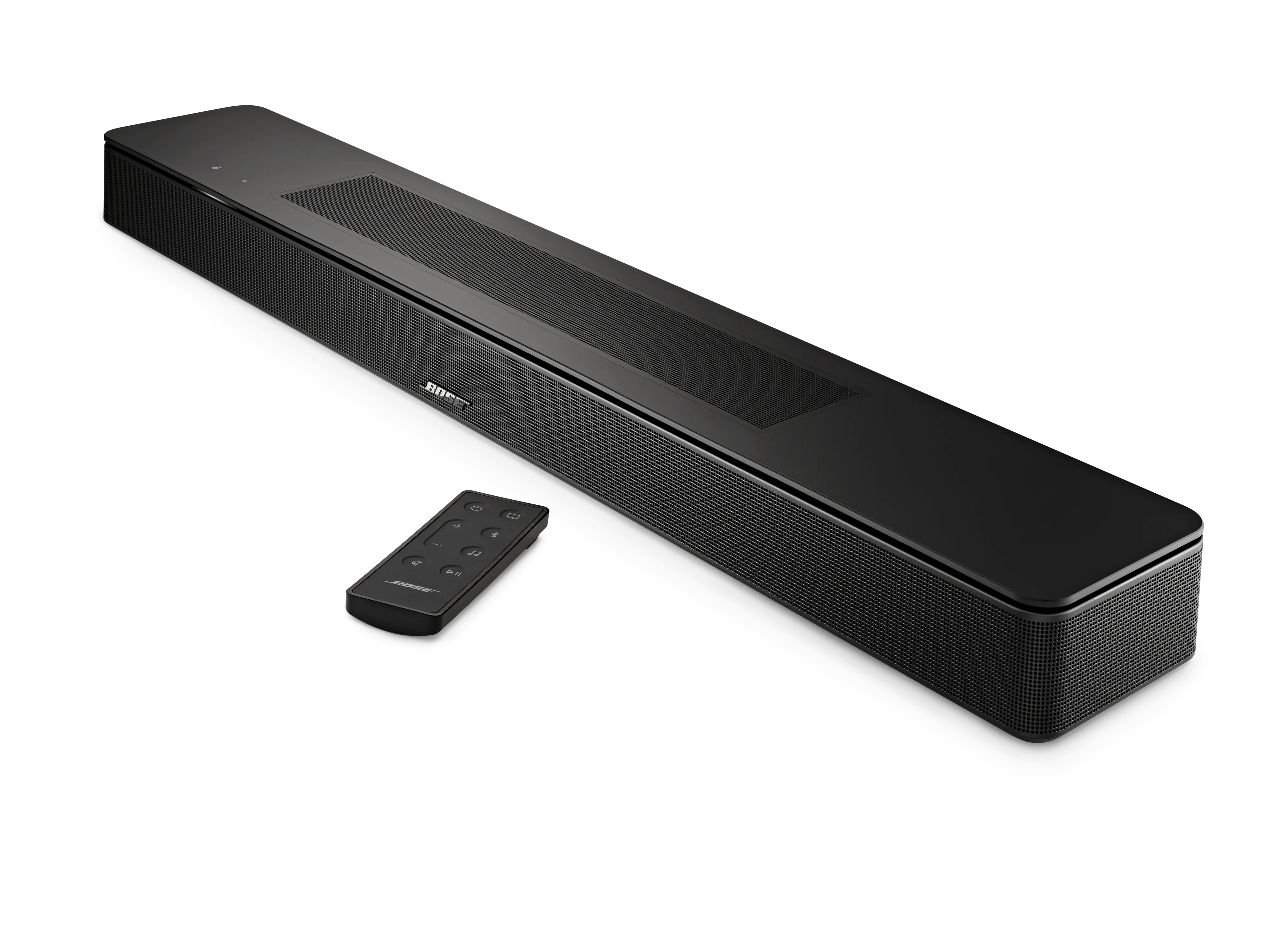
製品の初期設定 | Bose Smart Soundbar
Before you begin
- Install the Bose app
on your Apple or Android mobile device.
- Turn on Bluetooth® on your mobile device
- If you've already connect the soundbar to power, the light bar on the front should be glowing amber. If it isn't, you will need to put the soundbar into Setup mode.
よくある質問
How do I download the Bose App?
ボーズアプリは、以下のBose製品に対応しています。
Bose Frames Soprano
Bose Frames Tempo
Bose Frames Tenor
Boseミュージックアンプ
Bose Noise Cancelling Headphones 700 UC
Bose Noise Cancelling Headphones 700
Bose Portable Smart Speaker(ポータブル Home Speaker)
Bose S1 Pro+ Wireless PA System
Bose Smart Soundbar 300
Bose Smart Soundbar 600
Bose Smart Soundbar 700
Bose Smart Soundbar 900
Bose Smart Soundbar Ultra
Bose Smart Soundbar
Bose Smart Speaker 500(Home Speaker 500)
Bose Soundbar 500
Bose Soundbar 550
Bose Soundbar System Bundle
スポーツイヤホン
Bose Sport Open Earbuds(2021)
Bose Sport Open Earbuds
Bose Ultra Open Earbuds
Bose Ultra Open Earbuds(第2世代)
Home Speaker 300
Home Speaker 450
L1 Pro16 Portable Line Array System
L1 Pro32 Portable Line Array System
L1 Pro8 Portable Line Array System
Lifestyle Ultraサウンドバー
Lifestyle Ultra Speaker
QuietComfort 45 Headphones(QuietComfort SEヘッドホン)
QuietComfort Earbuds II
QuietComfort Earbuds
QuietComfort Headphones(第2世代)
QuietComfort Headphones
QuietComfort SEヘッドホン
QuietComfort Ultra Earbuds(第2世代)
QuietComfort Ultra Earbuds
QuietComfort Ultra Headphones(第2世代)
QuietComfort Ultra Headphones
SoundLink Flex(第2世代)
SoundLink Max
SoundLink Micro(第2世代)
SoundLink Plus
How do I put my Soundbar into Setup Mode?
セットアップモードに入ります。
- リモコンで 、サウンド バーのライトバーがオレンジ色に点灯するまで、ミュートボタンとBose Musicボタンを同時に5秒間長押しします。
- 次の手順については、Bose Musicアプリを参照するか、前のヘルプ記事に戻ります。
How do I sign in or create an account?
Sign in to the Bose app.
- In the Bose app, tap Sign In or Create Account
- Choose how you want to sign in:
- To sign in using an email address, tap Sign in with Email
- To sign in using an Apple ID, tap Sign in with Apple
- To sign in using a Facebook ID, tap Sign in with Facebook
- Enter the required information and follow the app instructions to create your account.
Create a Bose account using the Bose app.
- Open the Bose app and tap Sign In or Create Account
- At the bottom of the screen, tap Create One
- Choose how you want to create an account:
- To create an account using an email address, tap Sign up with Email at the bottom of the screen
- To create an account using an Apple ID, tap Sign in with Apple
- To create an account using a Facebook ID, tap Continue with Facebook. We recommend signing in with an email rather than a phone number. This way, you can stay up-to-date with info about your product and reset your password, if needed
- Enter the required information and follow the app instructions to create your account.
Smart Soundbar のセットアップを行ってください。
Before you begin
- Install the Bose app
on your Apple or Android mobile device. For more info, see Downloading the Bose app
- Turn on Bluetooth® on your mobile device
- If you've already connect the soundbar to power, the light bar on the front should be glowing amber. If it isn't, you will need to put the soundbar into Setup mode. For instructions, see Putting a system into Setup mode
Set up your soundbar
- If the soundbar is not connected to power, connect a power cord from the soundbar to a power outlet. The light bar will blink for approximately 30 seconds as it powers up, then glow amber
- On your mobile device, open the Bose app. If you are not signed in, sign in or create an account
- If prompted to allow Location Service, Local Access Network, or Bluetooth® permissions for the app, allow them. These functions are used so the app can detect and control your product. If you do not allow them, the app will not find your product
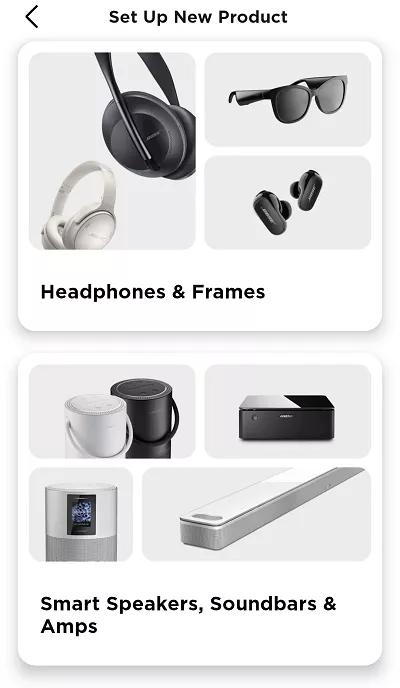
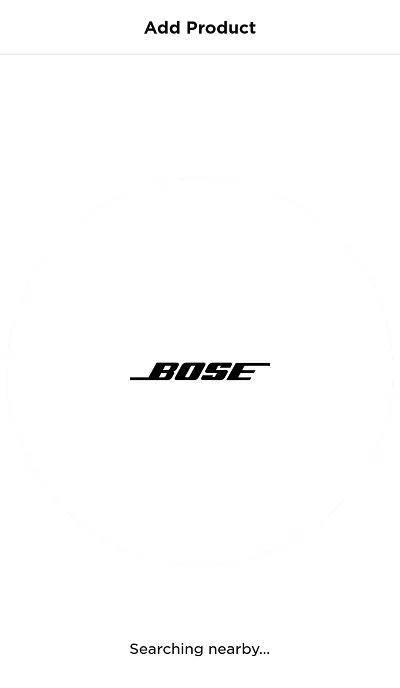
- Select Smart Speakers, Soundbars & Amps. The app will begin to search for products (in Setup mode) compatible with the Bose app
- If product image shown is not your soundbar, swipe left to see other products, then tap Add.
If the Set Up New Product screen does not appear, tap the My Bose iconin upper-left corner, then tap the + to add a product
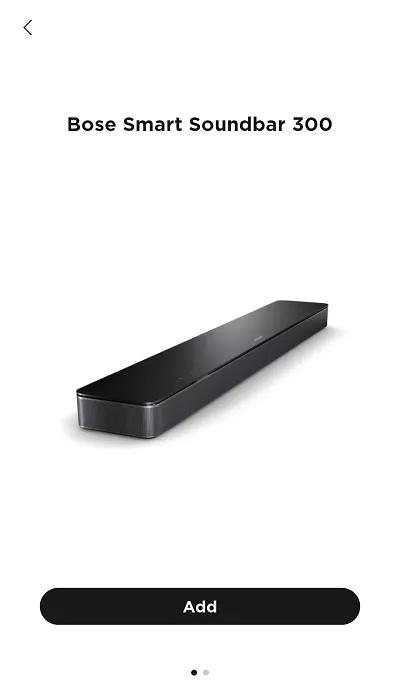
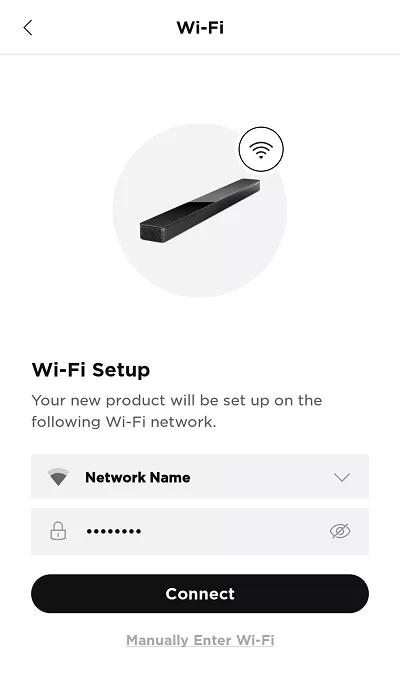
If the app cannot find your product, see App does not detect Wi-Fi product during set up
- Select your wireless network and enter the network password, then tap Connect
For hidden networks, tap Manually Enter Wi-Fi, then enter the network info
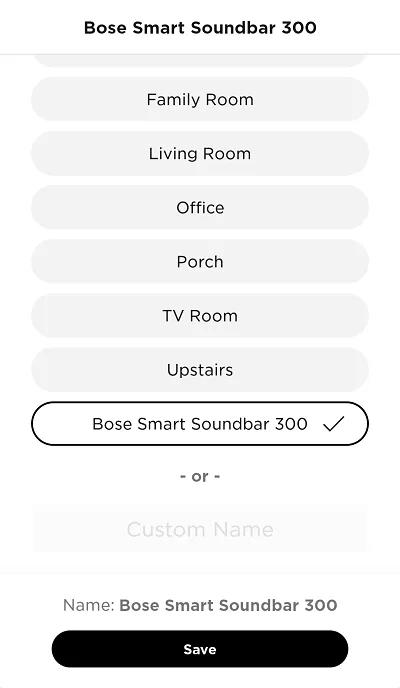
- Select a name for the soundbar or enter a custom name, then tap Save at the bottom of the screen
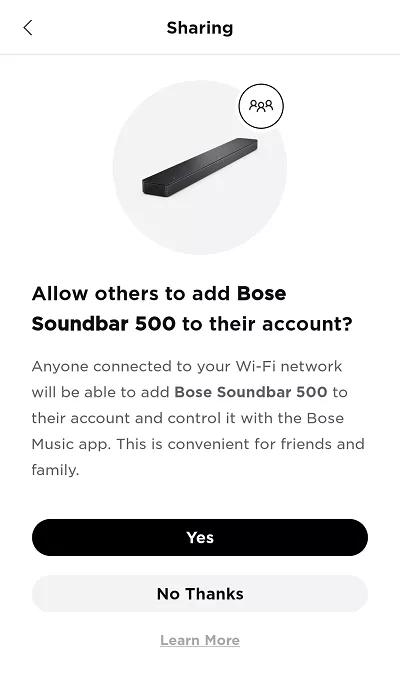
- On the Sharing screen, select Yes to let other Bose Music accounts on your network use this product also. Or, select No Thanks to keep this product only on your account
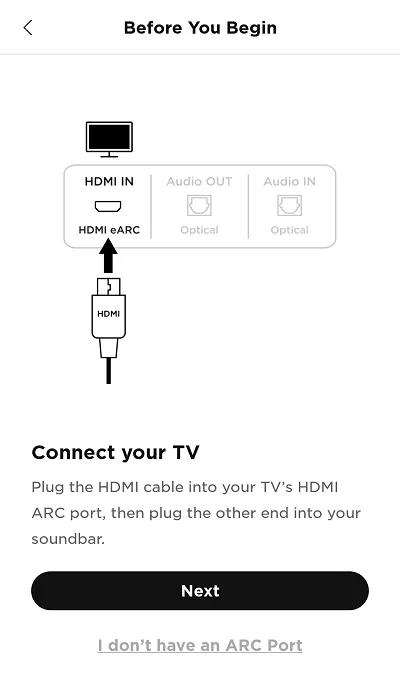
- Connect an HDMI cable from the HDMI ARC jack on the soundbar to the HDMI ARC (or eARC) jack on the TV, then tap Next
HDMI ARC (Audio Return Channel) lets the TV to send audio to your soundbar. If the TV does not have an HDMI connection labeled ARC or eARC, use an optical cable to connect the TV to the soundbar
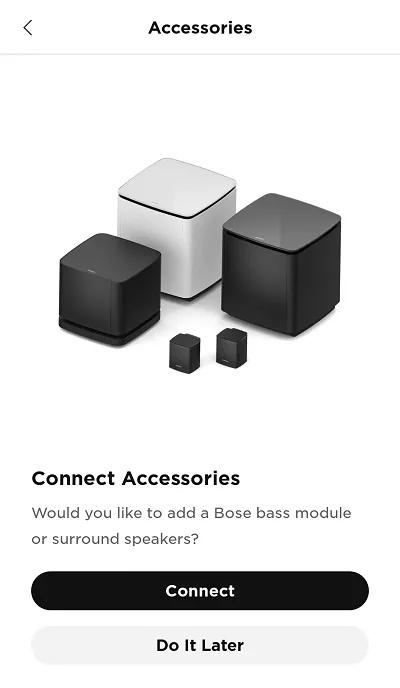
- If you're using the accessory bass module or surround speakers, tap Connect; otherwise, tap Do It Later
- Select the Alexa to set up a voice assistant. If you don't want to use an assistant or want to add Alexa later, tap Skip in the upper-right corner. For more info, see Adding or removing the Amazon Alexa voice assistant
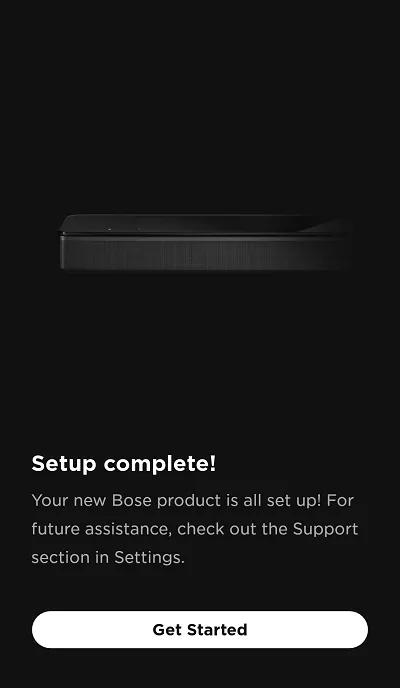
- Tap Get Started to start using your soundbar
よくある質問
アプリが製品を検出しない場合、どうすればよいですか?
デバイスのBluetooth®機能がオンになっていることをご確認ください。
Bluetoothがオフの場合、デバイスのDiscoveryを開始すると次のメッセージが表示されます。
ボーズアプリを実行しているデバイスが、Bose製品の近くにあることを確認してください。
iOSデバイスでは、Wi-Fiアシスト機能をオフにしてください。
お使いのデバイスでWi-Fiを一度オフにして、再度オンに切り替えてください。
ボーズアプリを利用しているデバイスのWi-Fi設定にアクセスし、Wi-Fiをいったんオフにしてから再度オンにしてください。
製品をリセットしてください。
スマートフォンの再起動と同様に、製品も軽微な不具合を解消するために時折リセットが必要なことがあります。詳細は、 製品のリセット方法をご覧ください。
ボーズアプリを動かしているデバイスを再起動してください。
ルーターの電源を入れ直してください。
モバイルデバイスの設定で、必ずアプリの位置情報とネットワークの利用許可をオンにしてください。
- iOSデバイスの場合:
- 設定 > プライバシー > ローカルネットワーク に移動し、ボーズアプリの設定が無効になっていないことを確認してください。
- 設定 > プライバシー > 位置情報サービス に移動し、ボーズアプリの設定が無効になっていないことを確認してください。
- Androidデバイスの場合、アプリアイコンを長押しし、表示されるポップアップから アプリ情報 をタップしてください。アプリ情報画面で、次をタップします。 権限 を確認し、必ず 位置情報 が有効になっていることを確認してください。
ボーズアプリを一度閉じてから、もう一度開いてください。
iOSデバイスの場合:
- ホームボタンを素早く2回押して、起動中のアプリ一覧を表示します。
- 左右にスワイプして目的のアプリを探します。
- アプリを上にスワイプして終了させます。
- アプリアイコンを長押しします。
- アプリ情報(または情報アイコン)を選択します。
- 強制停止を選びます。
ボーズアプリでWi-Fiに接続できない場合は、別の接続方法をお試しください。
ルーターが複数のネットワーク(例:2.4 GHz、5 GHz、ゲストネットワーク)を同時に発信している場合は、それぞれのネットワークに異なる名前を付けてください。
ルーターの設定で、5 GHzネットワークとゲストネットワーク��一時的にオフにしてみてください。2.4 GHzネットワークだけで問題が解決する場合は、5 GHzネットワークとゲストネットワークの名前を、2.4 GHzネットワークとは別の名前に変更してください(例: MyNetwork2G、 MyNetwork5G、および MyNetworkGuest)。これにより、ご自身およびデバイスが正しいネットワークを識別しやすくなります。(ヒント:ネットワーク名を変更した場合、以前のネットワーク名に接続していたデバイスは設定メニューで新しいネットワーク名に再接続する必要があります。)
ルーターの設定で、ワイヤレスアイソレーションモード、ワイヤレスAPモード、またはアクセスポイントモードを無効にしてみてください。
Wi-Fiリピーター、パワーラインアダプター、またはアクセスポイントなどのエクステンダーを利用している場合は、それを経由せずに接続してみてください。
- 改善しない場合は、問題はエクステンダーによるものではありません。
- 改善する場合は、エクステンダーを再接続してみてください。エクステンダーはメインネットワークに接続した後に接続すると効果的なことがあります。
- もし改善してもエクステンダーを再接続すると再び問題が発生する場合は、その原因はエクステンダー本体、設定、または設置場所にある可能性があります。
システムを工場出荷時設定にリセットし、セットアップをやり直してください。
テレビにARCポートがない場合はどうすればいいですか?
テレビにARC/eARCポートがない場合
代わりに光デジタルケーブルで接続することもできます。どちらのケーブルもサウンドバーが対応する音声フォーマットを供給できるため、音声に違いはありません。しかし、HDMIはConsumer Electronics Control(CEC)機能などの追加の利点があります。
光デジタル接続ではCECがサポートされませんが、 自動ウェイク機能のオン・オフ切り替え をご覧いただき、サウンドバーがテレビと連動して起動するように設定してください。
How do I add Alexa?
Amazon Alexa 音声アシスタントを追加するには:
注意:ご家庭に複数の製品がある場合は、それぞれの製品に同じAlexaアカウントを設定することをおすすめします。
- ボーズアプリで、
設定 アイコンを
右上隅にあるタップします。
ヒント:別の製品が表示されている場合は、左上隅の My Bose アイコンをタップして、使用したい製品を選択してください。 - 音声アシスタント を選択し、その後 Alexaを選択します。
- アプリの指示に従って、Alexaアカウントをリンクしてください。
- セットアップ中にAmazonアカウントでサインインすると、Alexa音声アシスタントがAlexa機能(例:「Alexa、天気を教えて」や「Alexa、10分のタイマーをセットして」)のためにBoseアカウントと連携します。
- セットアップ中にBoseアカウントでサインインすると、Bose製品がAlexa音声アシスタントに連携され、製品の操作ができます(例:「Alexa、[Bose製品名]でジャズを再生して」や「Alexa、[Bose製品名]をミュートして」)。
- Amazon Alexaアプリでは、Bose製品がAlexaデバイスに2回表示されます。どちらのエントリーも削除しないでください。1つはAlexa機能用、もう1つはBose製品機能用です。初回セットアップ後に製品名を変更すると、両エントリーはAlexaアプリ内で異なる名前になります。