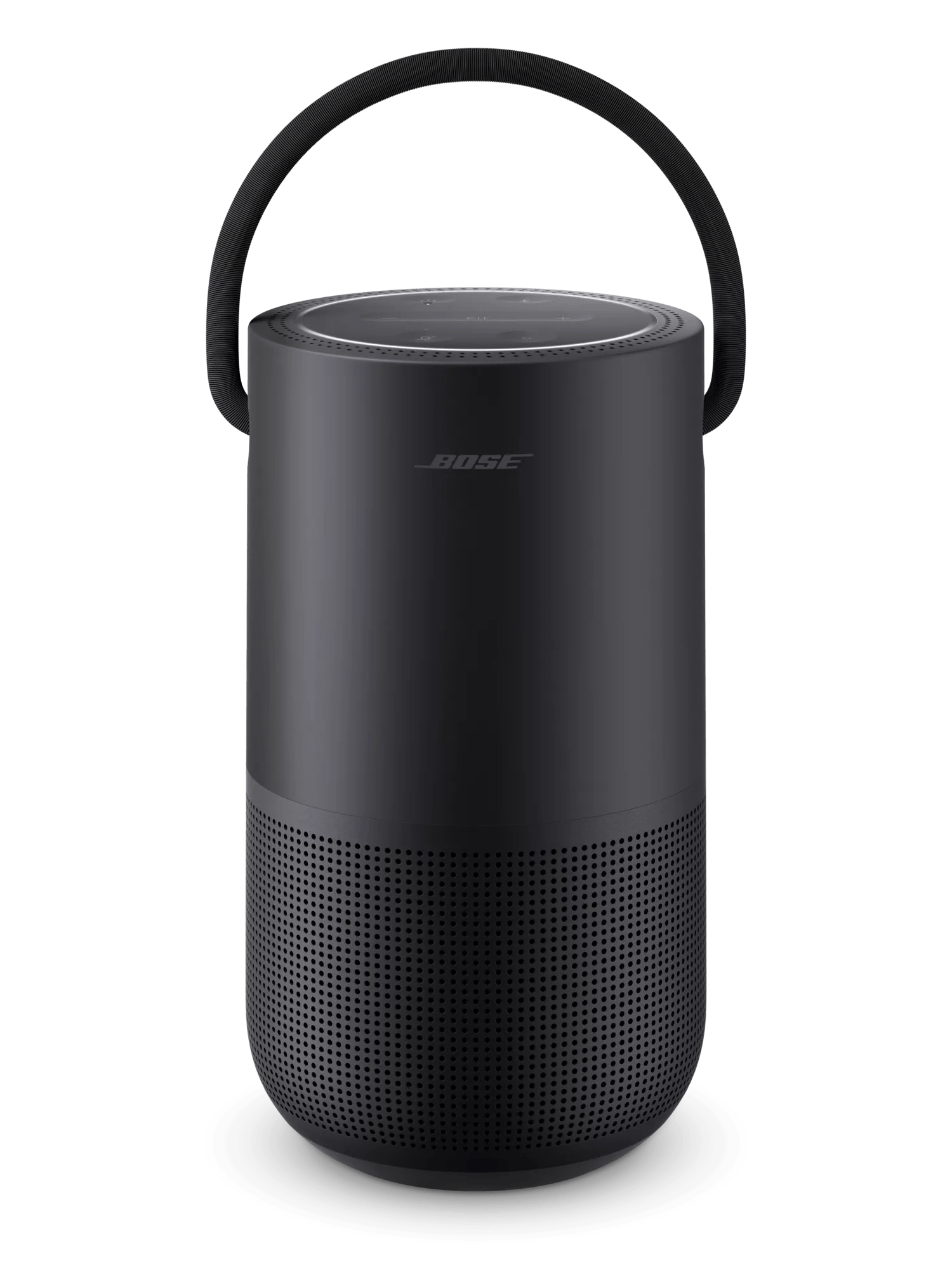
ボーズのBluetooth製品同士を接続する | Bose Portable Smart Speaker
bose-portable-smart-speaker
Bose Portable Smart Speaker販売元 2019

ボーズのBluetooth製品同士を接続する | Bose Portable Smart Speaker

ボーズアプリでスピーカーをグループ化

There are two ways to group speakers:

  • Group two or more Bose app-compatible speakers
  • Group a Bose app-compatible speaker with a single BluetoothⓇ product using SimpleSync. For a list of Bose products optimized for this functionality, see Products optimized for SimpleSync

Creating a group

  1. In the Bose app, tap the Group button. If this button is not shown, tap the Product Control icon \"icon\" in the lower-left corner.
    Tip: If you have more than one Bose app-compatible speaker, tap the My Bose icon \"icon\" in upper-left corner, select a speaker (which will be the primary speaker) then tap the Group button.
  2. Choose the speaker(s) to group with the primary speaker you selected:
    • To play from all of your speakers, tap + Add All
    • To play certain speakers, tap the + next to the speaker(s) you want to hear in the SMART SPEAKERS section
    • To group a single Bluetooth speaker or headset, tap the + next to the Bluetooth product you want to add in the SIMPLESYNC section. If you're connecting a product for the first time, tap Connect a New Product
  3. Tap on the X in the upper-right corner once you've selected the products to play together.
  4. On the product control screen, a Group Volume level bar appears above volume level bars of the grouped products. The volume level of grouped Bluetooth headphones cannot be adjusted within the app. The controls on the headphones must be used.

Adding or removing speakers in a group

If connecting a Bluetooth product, only one Bluetooth product can be connected at a time.

  1. In the Bose app, tap the My Bose icon \"icon\" in upper-left corner then select the group you want to edit.
  2. Tap the Edit Group button.
    Tip: If you only have two Bose app-compatible speakers, this button shows End Group while the speakers are grouped. Tapping it will end the group
  3. To remove a speaker from the group, tap the checkmark next to the speaker you want to remove.
  4. To add a speaker to the group, tap the + next to the speaker you want to add in the SMART SPEAKERS section.

Alternate method of adjusting the volume of grouped speakers

The volume level of grouped Bluetooth headphones cannot be adjusted within the app. The controls on the headphones must be used.

  1. In the Bose app, tap the Now Playing bar at the bottom of the screen
  2. Tap the ^ in the lower-right corner to expand the volume slider.
  3. Use group volume slider at the bottom to adjust the volume of all grouped speaker proportionately, or use the individual volume sliders to adjust certain speakers.

Saved Groups

Starting April 9, 2025, you can save smart speaker groups in the Bose app for easy reuse.

To create a group:

  1. Tap Group in the Bose app (ensure your app and firmware are up to date).
  2. Select Save New Group, then tap + to add speakers.
  3. Name the group and press Create.
  4. Your saved groups will appear at the top.

Tap a group to instantly connect your selected speakers. You can create, edit, and delete groups as needed.

Saved Groups in Spotify

Saved groups from the Bose app are also available in Spotify.

  1. Open Spotify and tap Connected Devices.
  2. Select a saved group to connect and play without opening the Bose app.

ボーズアプリなしでSimpleSync接続を作成するには:

  1. ボーズ サウンドバーに接続するヘッドホン(またはスピーカー)の電源を入れます。
  2. 接続する機器をペアリングモードにします。通常は、Bluetoothボタン(または電源スイッチ)を数秒間押し続けることで行います。機器がペアリングモードになると、ステータスランプが青く点滅し、音声ガイドが有効になっていれば、' "接続準備完了" というメッセージが聞こえます。
  3. ボーズ サウンドバーの電源を入れた状態で、サウンドバーのボーズ リモコンのBluetoothボタンを2秒間押し続けます。30秒以内に機器がサウンドバーに接続され、両方の機器から同じ音声が聞こえます。
サウンドバーでBluetoothオーディオを再生している場合、SimpleSyncを使用して別のスピーカーやヘッドホンをリンクすることはできません。

アプリを使用していない場合や、別のボーズ製品を接続しようとしている場合は、お使いの製品はBluetooth®オーディオを受信しますが、他のデバイスにBluetoothオーディオを送信することはできません。

ほとんどのBluetoothスピーカーやヘッドホンは、ボーズ製品と同様にBluetoothレシーバーです。つまり、Bluetoothトランスミッター(送信機、例:スマートフォンやノートパソコン)から送られた音声を受信して再生できます。ボーズ製品はBluetooth経由でのみ音声を受信できるため、互いに音声を送信することはできません。

これは役に立ちましたか?

YES
NO
修理または交換を開始する