これは役に立ちましたか?
製品のソフトウェアやファームウェアのアップデート | Bose Smart Soundbar
アップデートが利用可能になると、スピーカーは使用していない夜間に自動的に更新されます。
スピーカーは毎日アップデートを確認します。アップデートが利用可能で、スピーカーがインターネットに接続されている場合は、自動的にダウンロードされ、インストールされます。通常、これは夜間やシステムがアイドル状態のときに行われます。
アップデートを確認するには:
- サウンドバーがインターネット接続が利用できるネットワークに確実に接続されていることを確認してください。
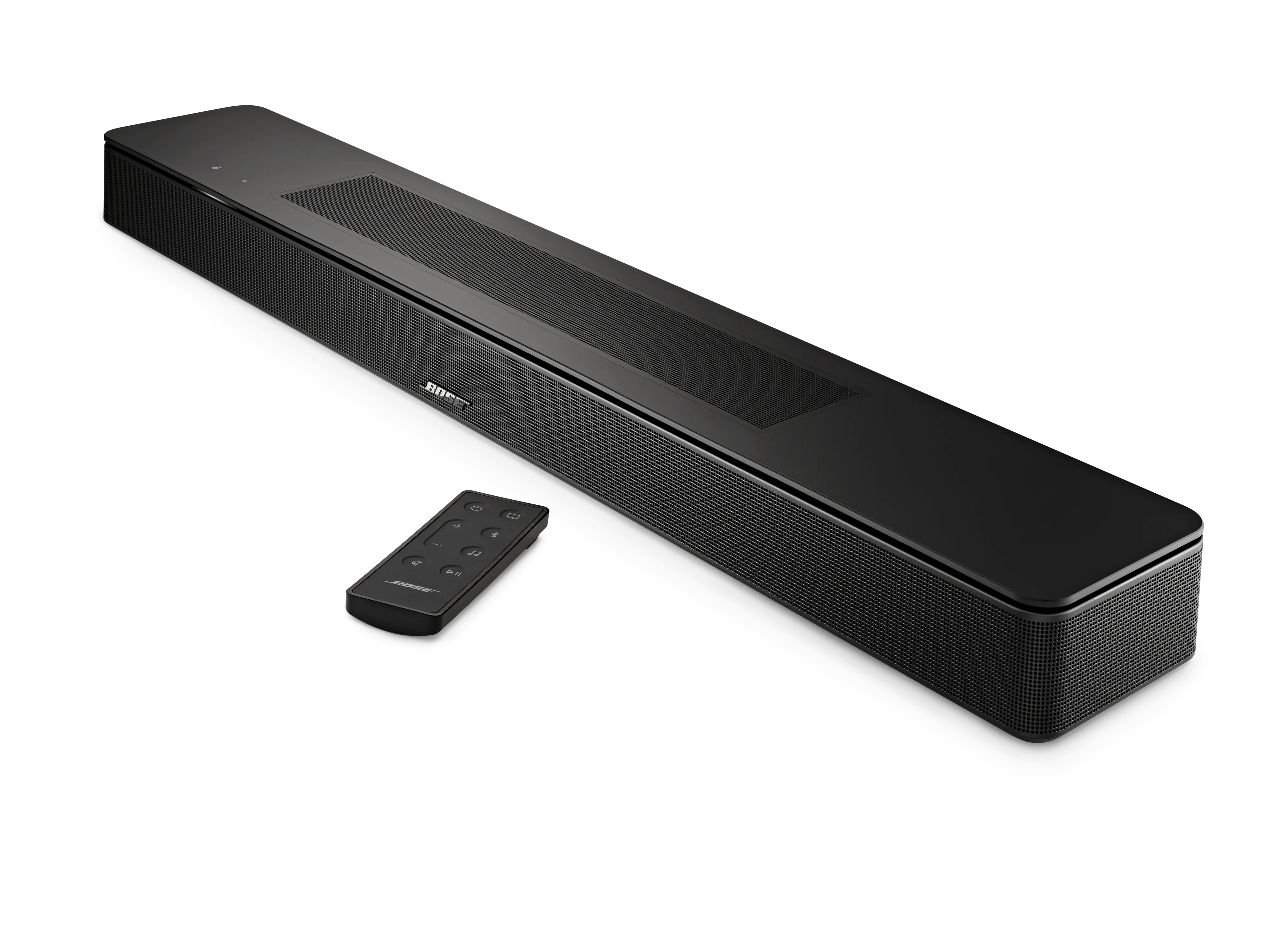
ヒント:音楽サービスをストリーミングしたり、設定済みの場合は音声アシスタントに質問したりして、インターネット接続が正常に機能しているか確認できます。 - リモコンで、ボリューム + ボリューム + とミュージック ミュージック
のボタンを同時に10秒間長押ししてください。
- アップデートがある場合は、更新中にライトバー上をホワイトの光が流れ、完了するとサウンドバーが自動的に再起動します。
- アップデートがない場合は、光の流れは表示されずに製品が再起動します。
標準の更新方法がうまくいかない場合は、以下の追加手段もご利用いただけます。
上記の手順は、Boseスマート製品のアップデートで最も簡単な方法です。アップデートには、スマート製品がインターネットに接続されていることと、ボーズアプリを利用していることが必要です。もし標準のシステムアップデート方法が利用できない、または正常に動作しない場合は、ほかのアップデート方法を試すことができます。
追加のアップデート方法
パソコンとUSBケーブルを使ってアップデートする方法
To update your soundbar using a computer and a USB cable:
- On a computer, open an Internet browser and go to support.bose.com/bssb-fw to download the latest firmware update for your soundbar.
- When prompted, save the product_update.zip file. Do not rename, open, or unzip the file.
If a prompt to download the file does not appear, your browser may have downloaded the file automatically. Look for the file in a browser notification message or in the Downloads folder. - Connect a USB-A-to-Micro-USB cable from the computer to the SERVICE jack on the back of the soundbar.
- Reboot the soundbar by disconnecting its power cord for 30 seconds.
- While waiting, verify it was unplugged by tapping the Microphone Off icon on the top of the soundbar. No tone should be heard after tapping the icon.
- After reconnecting the power cord, the light bar pulses white for about 30 seconds as the soundbar reboots.
- Once rebooted, the light bar turns off
- On the remote control, simultaneously press-and-hold the Mute and Music buttons for 5 seconds to enter Service mode. The light bar on the soundbar glows white then turns off when you release the buttons.
- In a separate web browser or tab, go to the following address: http://203.0.113.1:17008/update.html
IMPORTANT: This address will not work until you connect a computer, reboot your product then enter Service mode as described in the steps above - Select Choose File then select the update file downloaded earlier
- Click UPLOAD then wait for the file transfer to complete.
Direct IP方式による更新
To update your soundbar using the Direct IP method:
- Go to support.bose.com/bssb-fw to download the latest firmware update for your soundbar.
- When prompted, save the product_update.zip file. Do not rename, open, or unzip the file.
If a prompt to download the file does not appear, your browser may have downloaded the file automatically. Look for the file in a browser notification message or in the Downloads folder. - Reboot the soundbar by disconnecting its power cord for 30 seconds.
- While waiting, verify it was unplugged by tapping the Microphone Off icon on the top of the soundbar. No tone should be heard after tapping the icon.
- After reconnecting the power cord, the light bar pulses white for about 30 seconds as the soundbar reboots.
- Once rebooted, the light bar turns off
- Once the soundbar finishes rebooting, determine its IP address. For more info, see Determining the IP addressDetermining the IP address.
Be sure to check the IP address of the soundbar after rebooting since your router might assign it a new address. - In a web browser, type the IP address followed by :17008/update.html into the address bar (e.g. 10.0.0.6:17008/update.html) then press Enter.
- Select Choose File then select the update file downloaded earlier
- Click UPLOAD. The update file will begin to transfer and install.
- "UPLOAD COMPLETE" will appear in the browser once the file has been transferred to your soundbar.
- While the speaker is updating, a white light scrolls across the light bar on the front of the soundbar
- The update is complete when the light bar stops scrolling.
内蔵のセットアップネットワークを使った更新
To update your soundbar using the built-in setup network:
- Go to support.bose.com/bssb-fw to download the latest firmware update for your soundbar.
- When prompted, save the product_update.zip file. Do not rename, open, or unzip the file.
If a prompt to download the file does not appear, your browser may have downloaded the file automatically. Look for the file in a browser notification message or in the Downloads folder. - Restore the factory settings of the soundbar. For more info, see Resetting your product
- On your device that downloaded update file, open its Wi-Fi menu then connect to the network name that begins with Bose followed by the name of your soundbar.
If you are prompted that the connection has no Internet access, choose to connect to the network anyway. - In a separate web browser or tab, go to the following address: http://203.0.113.1:17008/update.html
IMPORTANT: This address will not work until you restore your product to the factory settings then connect to its built-in network as described in the steps above. - Select Choose File then select the update file downloaded earlier
- Click UPLOAD. The update file will begin to transfer and install.
- "UPLOAD COMPLETE" will appear in the browser once the file has been transferred to your soundbar.
- While the speaker is updating, a white light scrolls across the light bar on the front of the soundbar
- The update is complete when the light bar stops scrolling.